Admin Feature Tour
This page describes all core admin-facing functions in EZ Inventory and shows screenshots for each major area.
1. Sign In
Use email/password or passkey to access the app.
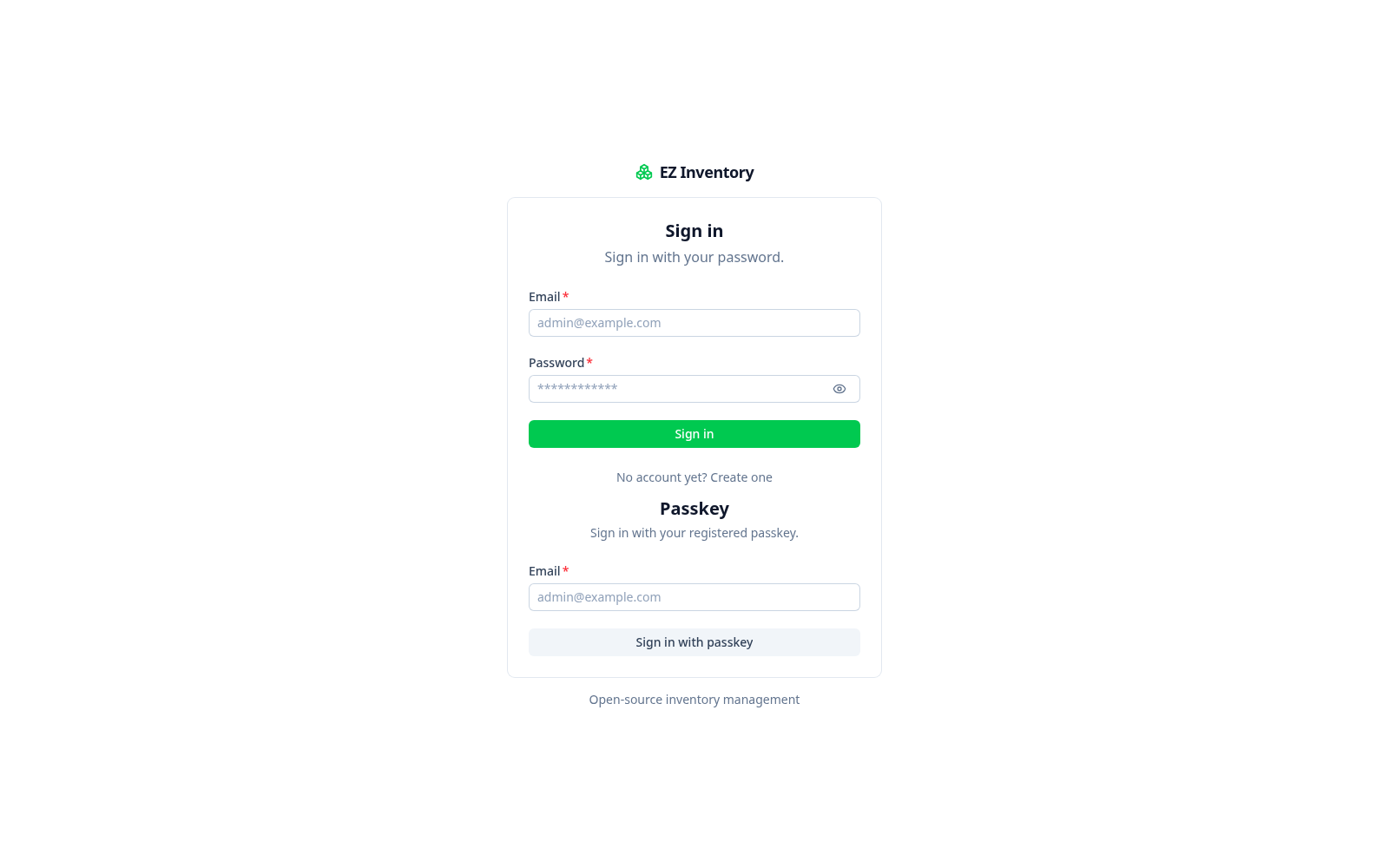
Main functions:
- Sign in with password
- Sign in with passkey
- Navigate to signup if no account exists
2. Dashboard
The dashboard is your starting point after login.
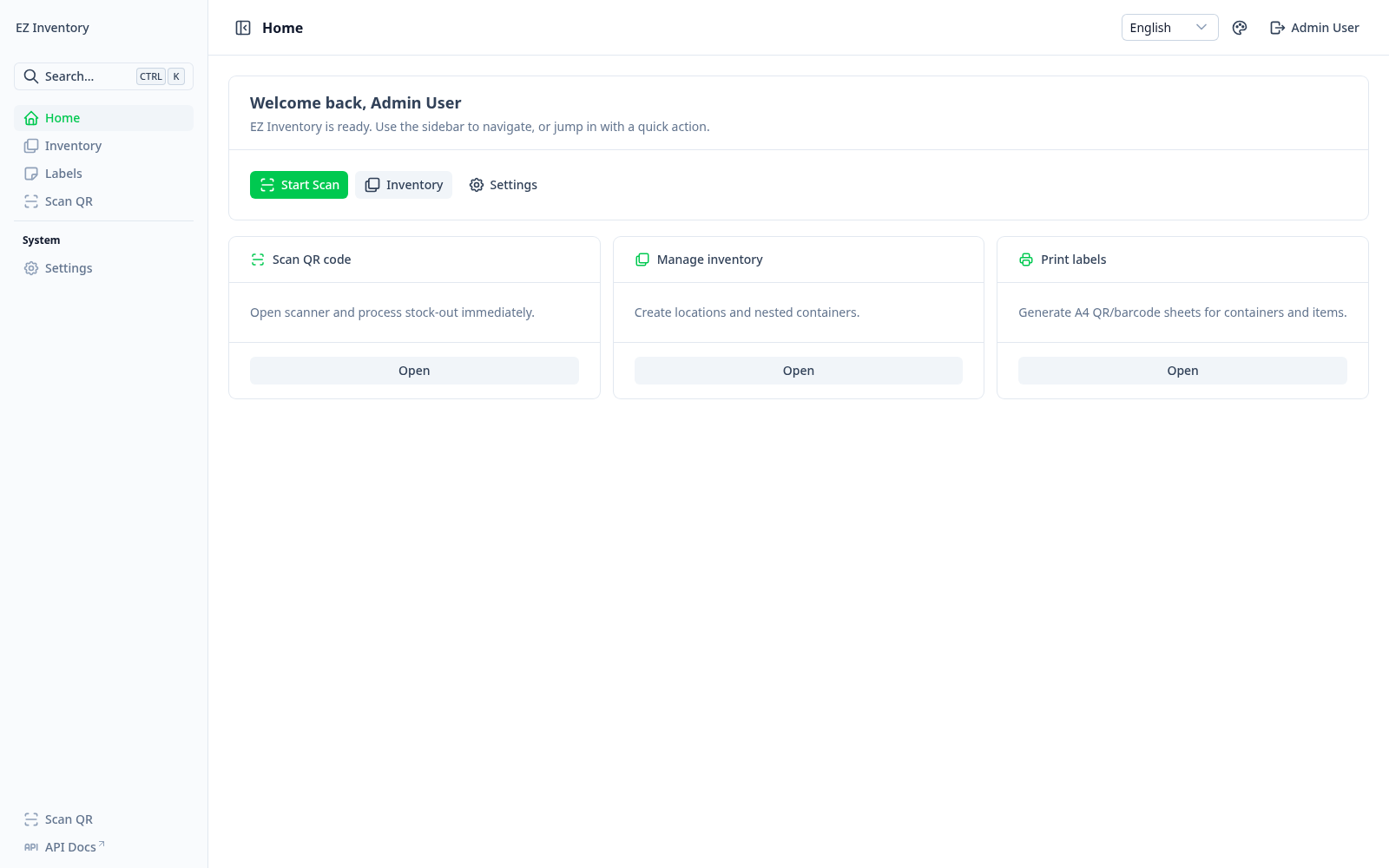
Main functions:
- Quick entry to scanning flow
- Quick entry to inventory structure management
- Quick entry to label generation and printing
3. Inventory Structure
Create physical structure with locations and nested containers.
Main functions:
- Create locations (name, code, description)
- Create containers in a selected location
- Build nested container trees (for example shelf -> box -> bin)
- Review current tree layout
4. Scan and Quick Actions
Scan or paste a code, find the item, and prepare stock operations.
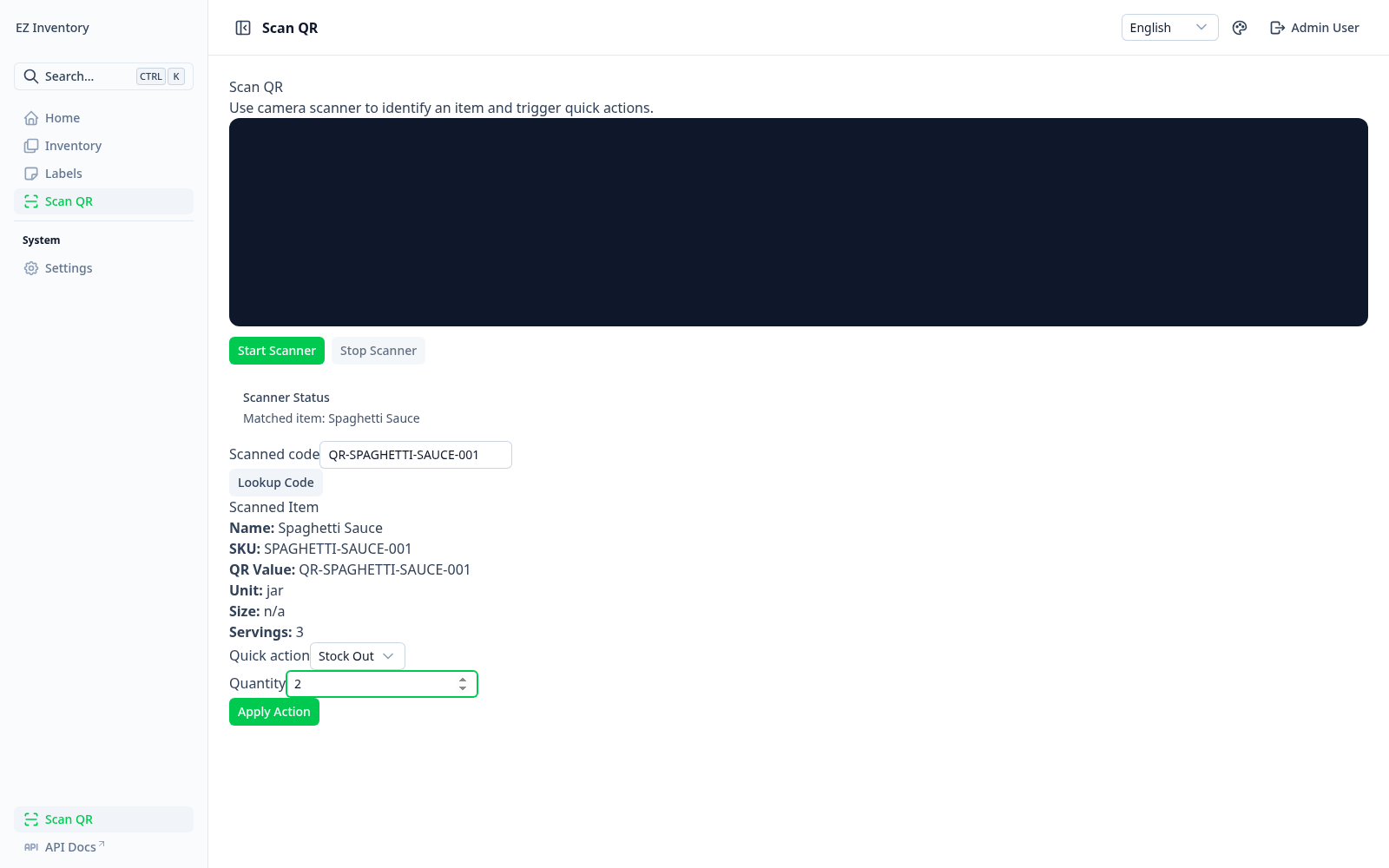
Main functions:
- Camera scanner start/stop
- Manual code lookup
- Quick actions (
stock-out,stock-in,transfer) - Quantity input for stock-out planning
5. Label Generator
Generate printable QR/barcode labels for items or containers.
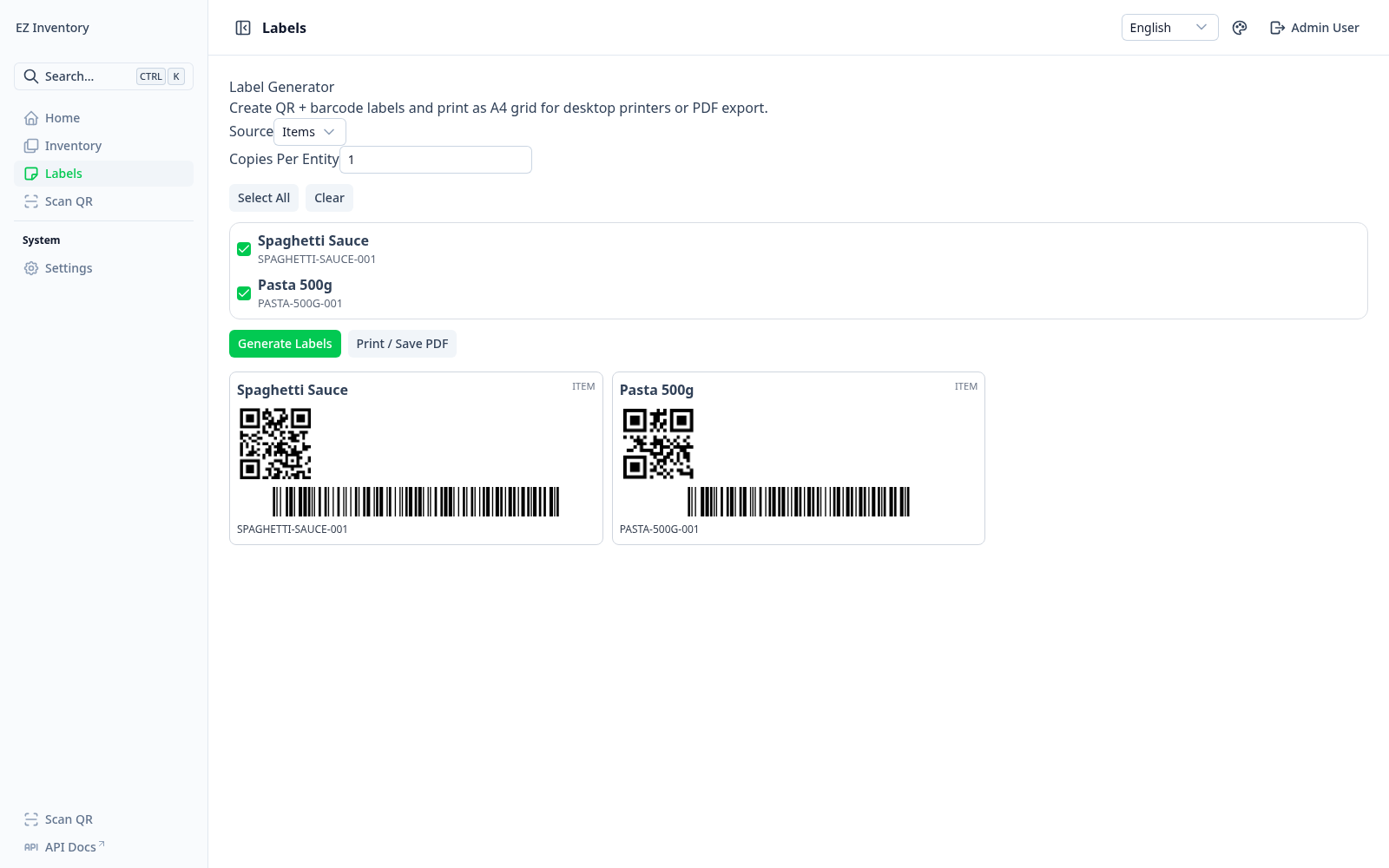
Main functions:
- Choose label source (
itemsorcontainers) - Select entities and number of copies
- Generate QR + CODE128 barcode labels
- Print or save A4 sheet as PDF
6. Settings Overview
Settings combines security, setup control, and user administration.
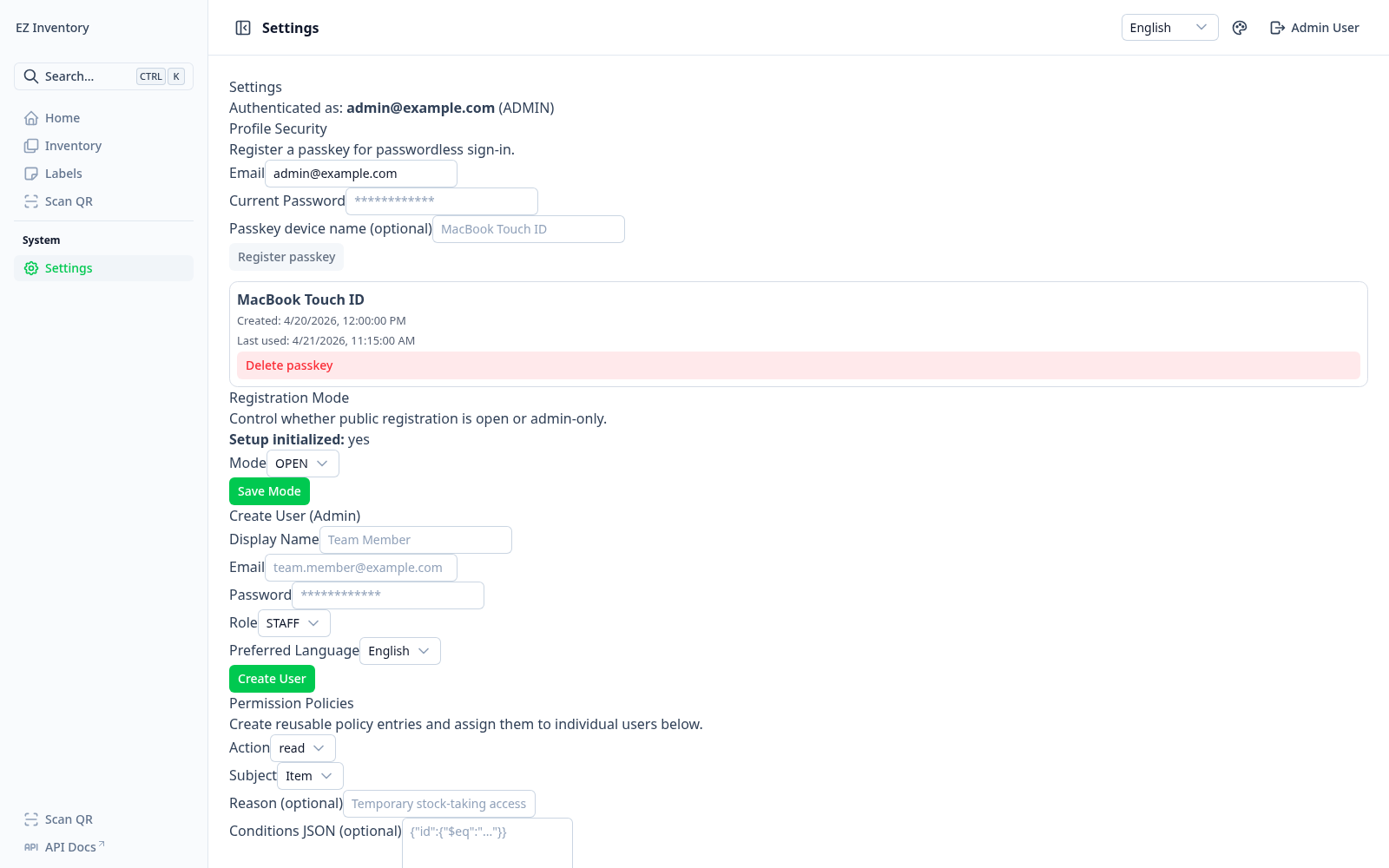
Main functions:
- Profile security and passkey registration/deletion
- Registration mode (
OPENorADMIN_ONLY) - Admin user creation
- Permission policy management
7. User Permissions (Fine-Grained)
Assign roles and policy IDs to each managed user.
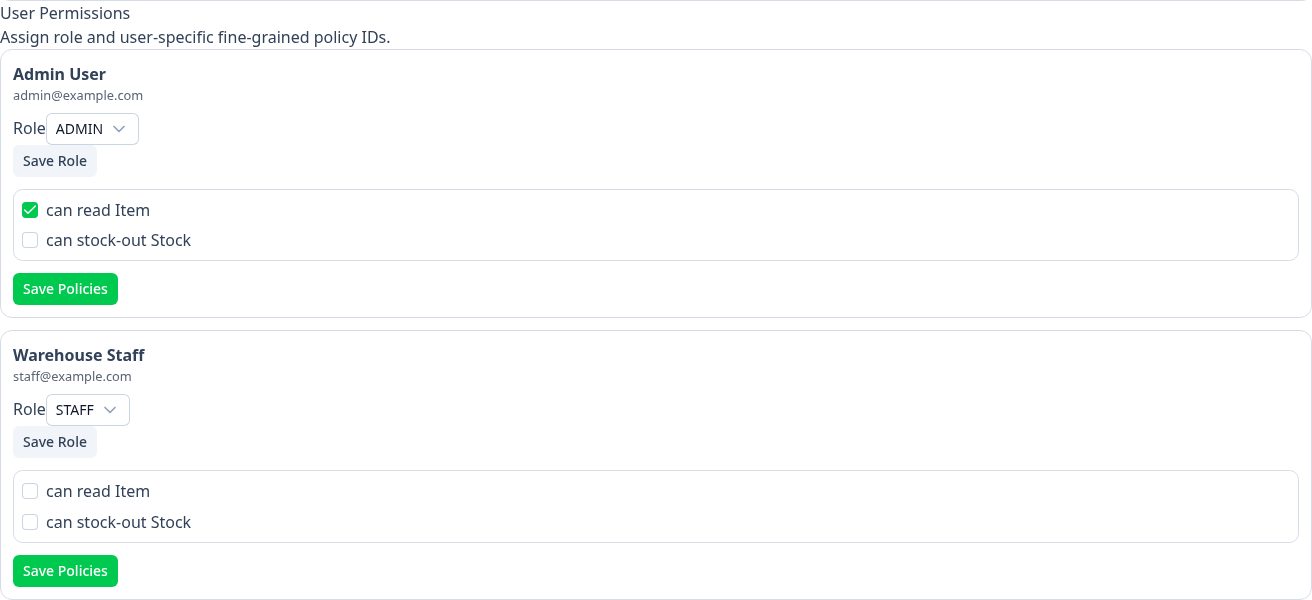
Main functions:
- Update role per user
- Attach/remove specific permission policies
- Save user-level policy sets
8. Recommended Admin Workflow
- Bootstrap first admin user.
- Lock registration mode to
ADMIN_ONLY. - Create staff accounts with least-privilege roles.
- Define and assign policy rules.
- Set up locations/containers and print labels.
- Train staff on scan-first stock workflows.