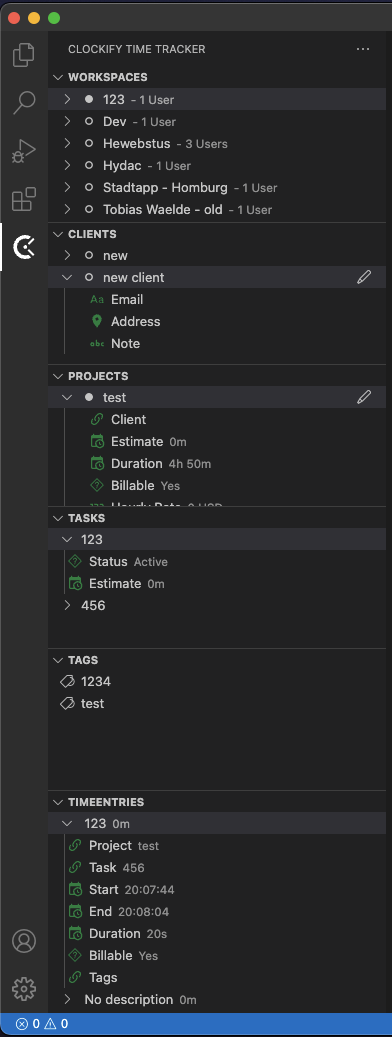
Appearance
Clockify for VS Code
Manage Clockify workspaces, clients, projects, tasks, tags and time entries directly in VS Code.
Setup
- Install the
tobiaswaelde.clockify-trackerextension. - Run Clockify: Set API key.
- Select a default workspace when prompted.
The API key is stored securely in VS Code SecretStorage rather than in user or workspace settings.
Configuration
All settings use the clockify. prefix. Open VS Code Settings and search for Clockify to configure tracking defaults, auto-start, auto-stop and tree-view options.
Auto-stop is scoped to the VS Code window that started the timer. Closing another window that only observed the running timer does not stop it.
When Timesheet is enabled for a Clockify workspace, selecting a project is required before a timer can start so the completed entry appears in Timesheet. If a project-less timer was started elsewhere, the extension asks for a project before stopping it.
Tree view
Workspace, client, project and task selection dialogs end with an Add action. The newly created item is selected immediately, so starting or updating a timer can continue without switching to the tree view.
Use the Add button in the Time Entries view to create a manual entry. The guided flow selects the workspace data and accepts local start and end times in YYYY-MM-DD HH:mm format. Required project, task, tag, and description rules from the selected workspace are enforced before submission.
Projects can be renamed or deleted from their context menu. Deleting a project requires confirmation and refreshes the related Projects, Tasks, and Time Entries views.
Tasks can also be renamed or deleted from their context menu. The current task name is prefilled when renaming, and deletion requires confirmation.
To auto-track the correct project for a local folder, use Link Project to Workspace Folder from the project's context menu. The link stores resource-scoped workspace/project settings and enables auto-start for that folder. In a multi-root workspace the active editor's folder wins; with no active editor, a single linked auto-start folder is selected automatically. If several folders are linked, focus a file in the intended folder before starting a timer.
Atlassian Jira integration
With the optional Atlassian for VS Code extension installed, right-click an issue in its Jira Work Items or Custom JQL view—or a related Jira issue shown for a Bitbucket pull request—and choose Start Clockify Timer. Clockify uses ISSUE-KEY: Summary as the timer description and retains the extension's normal project/task selection. If a timer is already running, it is not replaced.
Pomodoro
Enable clockify.pomodoro.enabled to apply a configurable focus interval to the active Clockify timer. This also observes timers started in the browser or another Clockify client. Browser-extension Pomodoro preferences live only in that browser's storage and are not exposed by the Clockify API, so configure the VS Code interval, short break, long break, and long-break cadence with the clockify.pomodoro.* settings.
By default, VS Code shows actions when focus or break time ends. With clockify.pomodoro.automaticBreaks, it stops the work entry without editing it, creates a break entry using the same project/task/tags, and resumes the previous work entry when the configured break ends. Only the focused VS Code window acts on an elapsed interval, preventing duplicate prompts in multi-window use.