Sign in and navigation
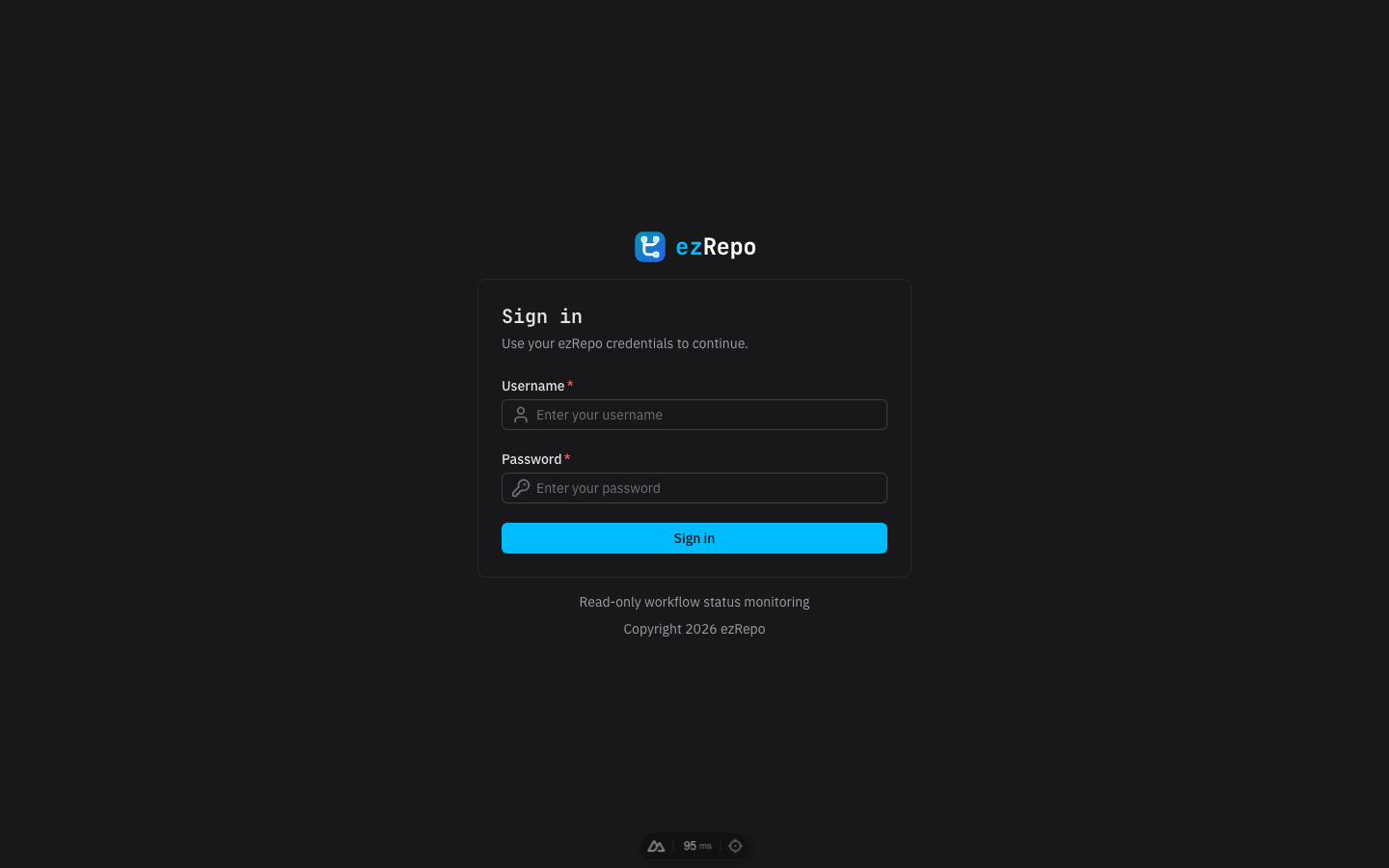
Sign in
After an administrator has completed the one-time setup, open Sign in, enter your username and password, and select Sign in. The initial administrator instead uses First-run setup once to create the first account. Passwords must contain at least 12 characters.
If the credentials are rejected, verify the username before retrying. A forgotten password must be reset by an operator with access to the deployment; see Authentication. Signing out removes the browser session without changing any provider credentials.
Navigate the application
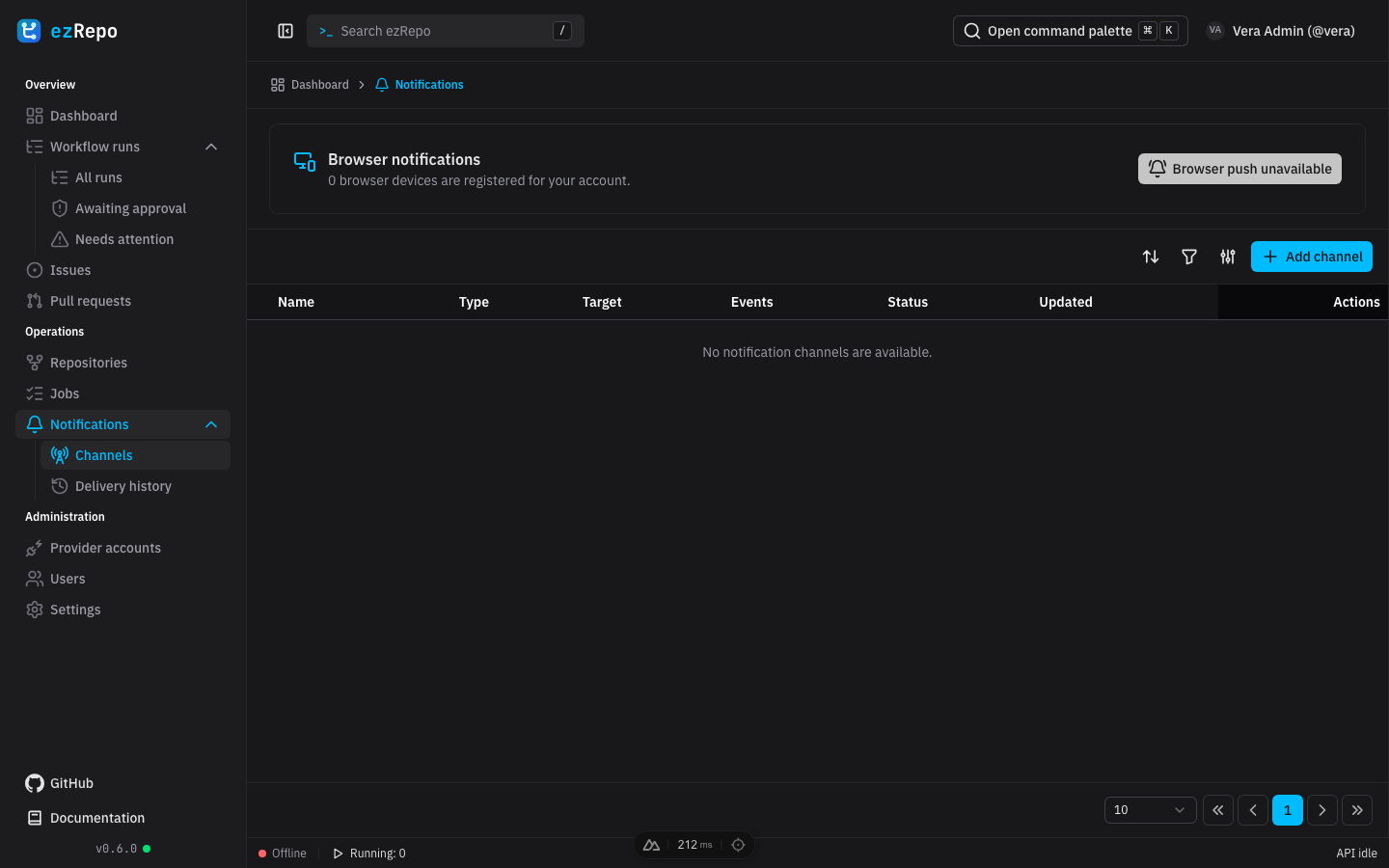
The sidebar groups pages into Overview, Operations, and, for system administrators, Administration. The Workflow runs group expands to All runs, Awaiting approval, and Needs attention. Attention badges show the current number of matching runs. Collapsing the sidebar keeps the same destinations available as labeled icons.
Use the search control in the app bar to find navigation destinations, repositories, provider accounts, and workflow runs. Enter at least two characters, choose a result with the pointer or keyboard, and press Escape to close the dialog. Search results are permission-scoped, so a repository that is not assigned to you is not returned.
The global status bar reports API availability and active synchronization work. Select the running counter to open the repository synchronization jobs page. If the API is unavailable, data pages may retain their shell while showing load errors; retry after the service has recovered.
Personal settings and version information
Open the user menu to change your name, username, profile picture, password, language, or appearance. Changing the username requires the current password. Changing the password invalidates other signed-in sessions. Profile pictures accept JPEG, PNG, or WebP images up to 2 MB; non-square images can be cropped before upload.
The footer links to the source repository and this handbook. Select the displayed version to read the built-in changelog. When a newer GitHub Release exists, ezRepo marks it as an available update; your deployment administrator performs the upgrade described in Deployment.