
Navigation and search
Sidebar and page header
The sidebar groups links into Workspace, Inventory, and System. Inventory is ordered as Manufacturers, Printers, Components, Filaments, and, when enabled, Spools. Select the logo or Dashboard to return to the overview. The sidebar can be collapsed or resized; its state is stored in the browser. The vertically stacked, full-width footer links are labeled GitHub and Documentation. The centered installed version opens the changelog, and an Update available badge appears when a newer semantic version is available.
Every management page includes a breadcrumb rooted at Dashboard. Parent links follow the navigation hierarchy; detail pages show the record name and settings pages show the active settings section. Login, setup, offline, and printable reports or labels do not include breadcrumbs. Toolbars use the standard component spacing.
Every list page has a fixed toolbar with icon-backed breadcrumbs, local search, table options, and New. Local search filters only the current resource. Table options → Show archived adds archived records to the table. Press Shift+N on a list page to open its create dialog. Open the keyboard-shortcut dialog with ? or from the user menu for a compact overview of all available shortcuts.
On smaller screens, the toolbar wraps below the breadcrumb. Search uses its own row on phones, while filters, table options, and New stay together and align to the right.
Install the app
The production build includes a web app manifest, complete application icons, and a service worker. In a supported browser, open your HTTPS instance and use ezPrint's installation prompt or the browser's Install or Add to Home Screen action. Dismissing ezPrint's prompt permanently hides that prompt in the current browser profile; installation remains available from the browser menu. The development server does not enable the service worker.
The installed application shell remains available if the server or network cannot be reached. ezPrint then opens a dedicated offline screen and returns to the requested page after the connection is restored. Application records, sessions, reports, exports, and backups are never cached for offline use. An active server connection is therefore required to sign in, load data, and save changes.
When a new frontend version is ready, ezPrint asks before activating it. Select Reload now to switch versions or Later to keep the current page and any unsaved form input open.
Global search
Select the search field in the top bar or press / while focus is outside a form control. Enter at least two characters. Results are grouped into prints, customers, printers, components, and filaments. Selecting a print opens its details; selecting an inventory item opens the matching filtered page.
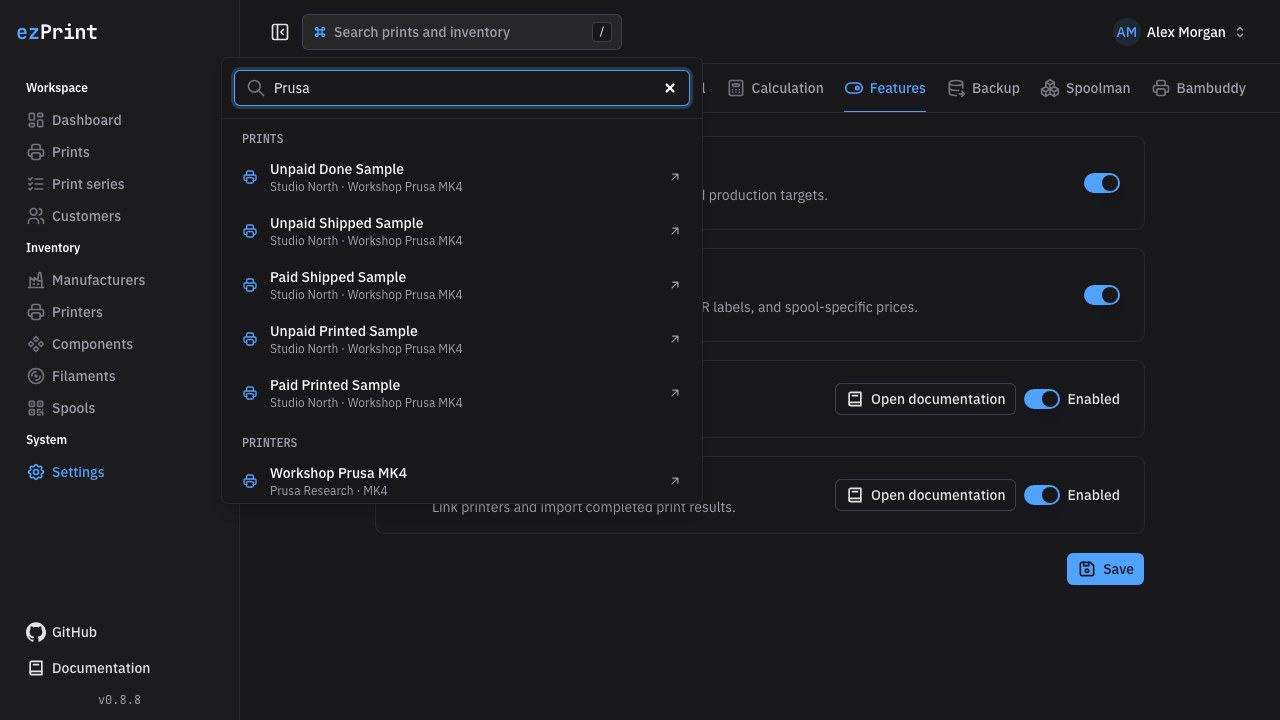
Search waits briefly while typing and ignores older responses when a newer query finishes first. Press Escape to close the panel.
User menu
The avatar menu provides quick controls for:
- Language: switches the application between German and US English and stores the choice on the account.
- Appearance: Light, Dark, or System; the selection is stored in the browser.
- Keyboard shortcuts: opens the overview of available global and table shortcuts.
- Sign out: deletes the current session and returns to sign-in.
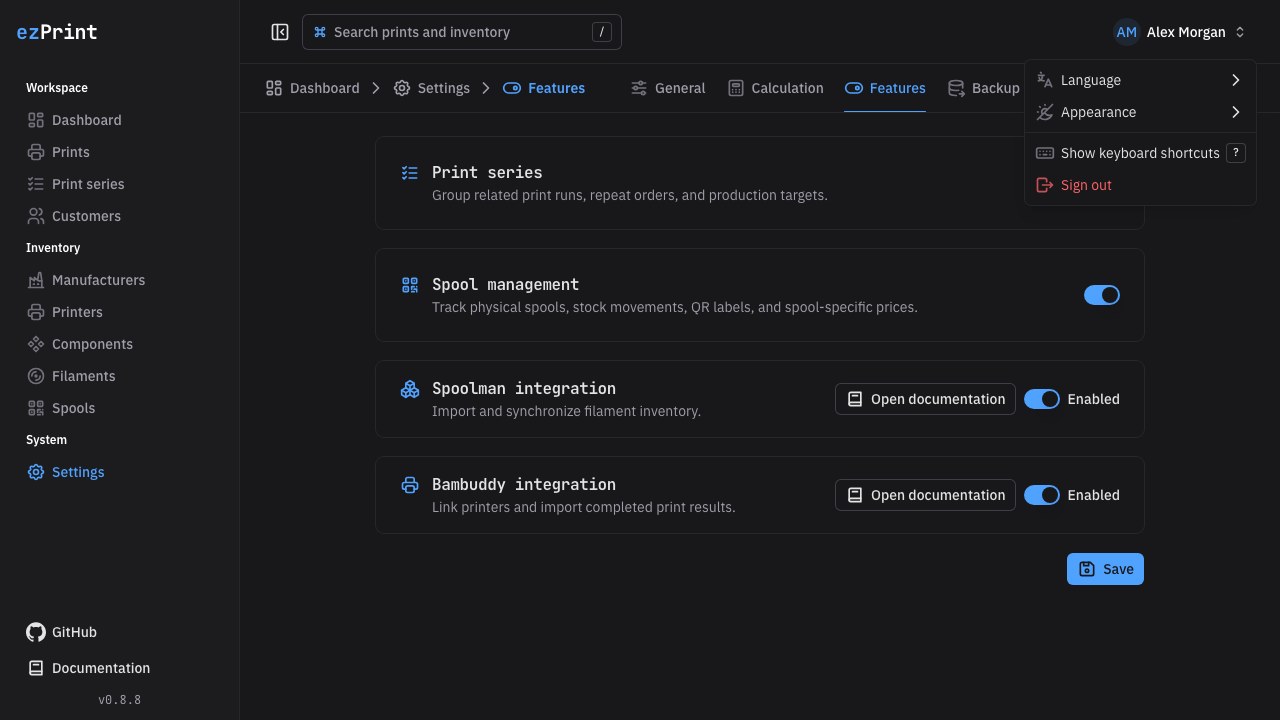
The full set of instance and display options is available on the Settings page.