
Print workflow
The print list and customer print history include row actions to advance a print to the next workflow status or mark it as paid. Leaving Draft requires confirmation because it freezes the cost snapshot. The next-status action disappears at Done, and the payment action disappears once paid. Archived prints cannot be changed from these row actions. Marking a print Done does not record a successful or failed outcome; record that separately.
Prints page
The /prints table shows name, customer, printer, total duration, total cost, workflow status, and payment status. Select a print name to open its details.
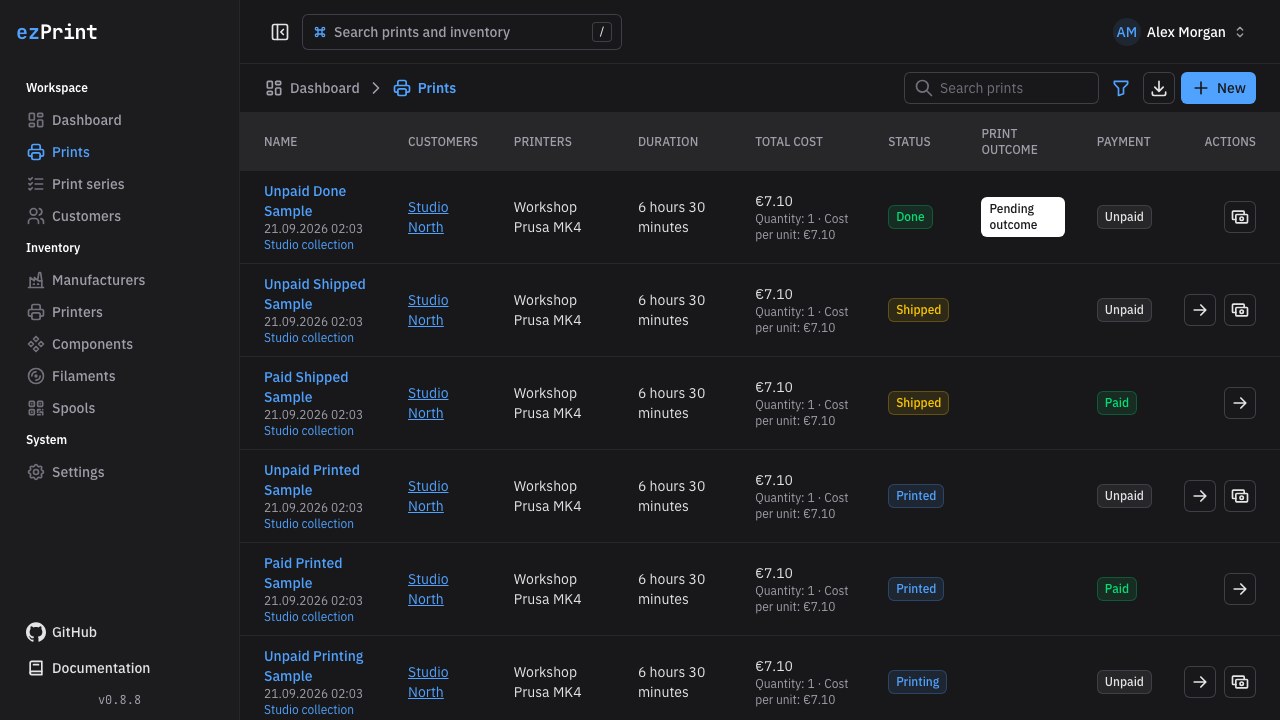
Use the toolbar to:
- search by print name;
- combine workflow status, outcome, printer, customer, optional series, archive state, and activity dates with Query Kit AND or OR filters;
- choose New or press Shift+N to create a print.
Activity dates use completion time for completed runs and creation time otherwise. Active prints are selected by default; remove the archive filter to include both active and archived records. CSV export uses the same search and filter state while continuing to export completed prints only.
The /prints/new route opens the same guided create dialog and normalizes the URL back to /prints.
Create a print
The dialog validates the current section before moving forward:
- General: enter a name, quantity of complete products, optional customer, and sales value. Each print part has its own printer and compatible build plate. Use Add print part for additional machine runs; at least one part must remain.
- Duration: for each part, select at least one compatible hotend and enter nonnegative hours plus 0–59 minutes. Use Add to add another hotend; each hotend must be unique and have positive total duration.
- Material: for each part, optionally select compatible Other components, then select one or more unique filaments and enter a positive used weight for each.
- Review: add an optional note and verify the live cost breakdown before selecting Save draft.
Selectors search on the server and load additional pages on demand. Their + buttons create an entry in a nested dialog, then select it without losing the print inputs.
Changing a part’s printer resets only that part’s component selections because compatibility may differ. Back preserves valid values, while Cancel closes the dialog without creating a print.
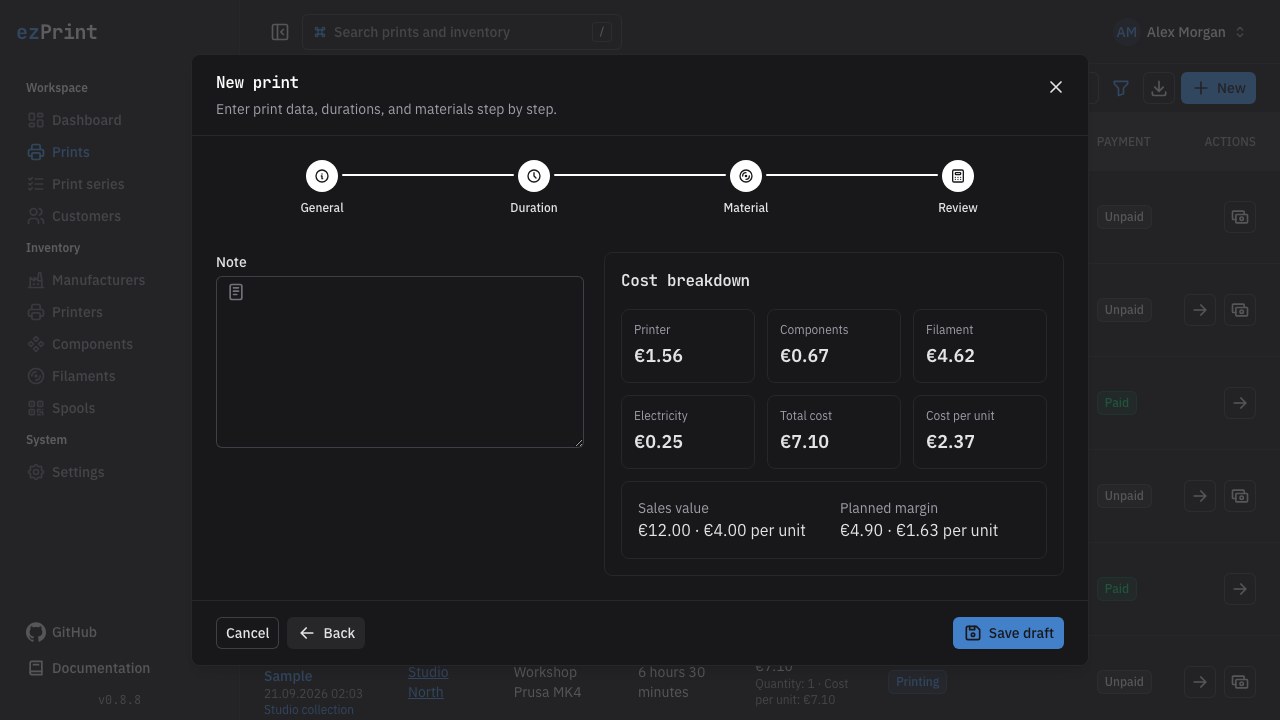
Edit a draft
A saved draft remains editable at /prints/:id. The detail page exposes all fields in one scrollable form. Changes automatically refresh the preview after a short delay; Save draft persists the recalculated inputs and cost.
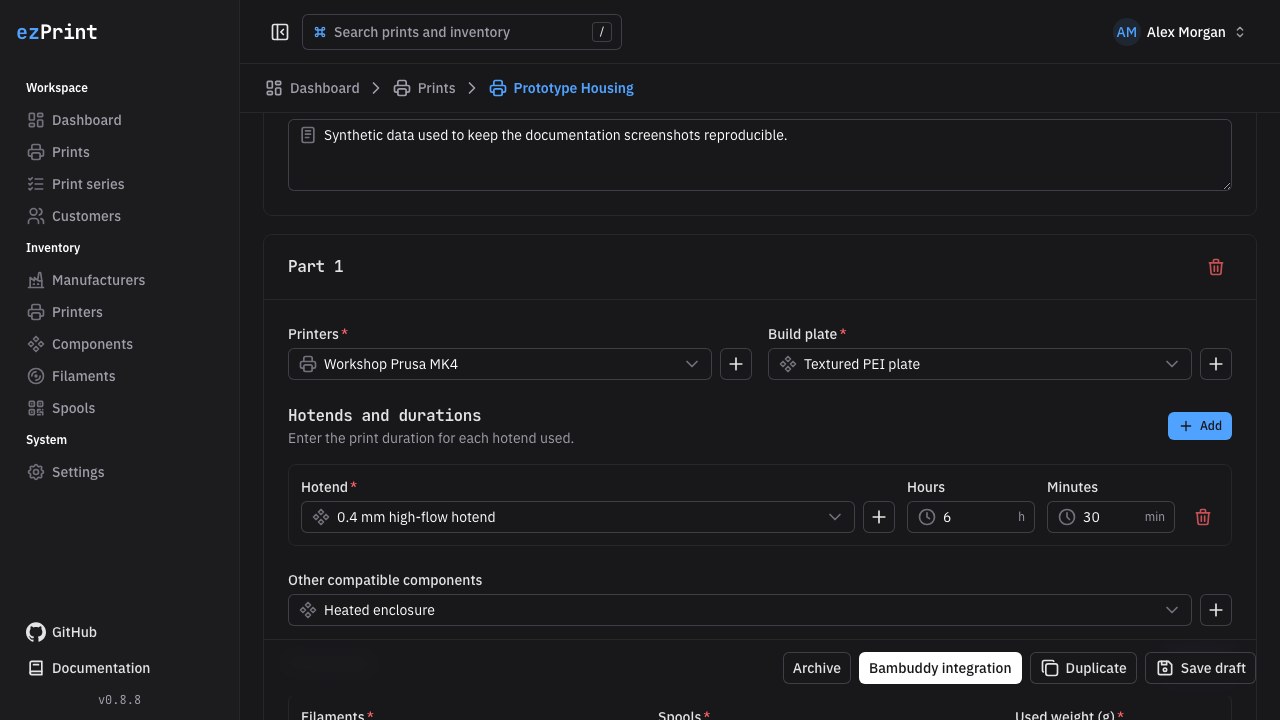
The preview contains:
- printer wear for total duration;
- build-plate, hotend, and optional-component wear;
- all filament usage;
- electricity from duration, printer watts, and the current electricity rate;
- the exact unrounded total, formatted for display in the selected currency.
See Calculation rules for the formula and a reproducible numerical example.
Update workflow and payment
Every print moves through DRAFT, PRINTING, PRINTED, SHIPPED, and DONE. Choose the next value in the Workflow card and select Update status. The first transition out of Draft requires confirmation. The server validates and recalculates the draft, then finalizes its immutable snapshot of inputs, source prices, rates, electricity price, currency, formula version, category totals, and final total.
Use Mark as paid independently of the workflow status. ezPrint stores the server timestamp in paidAt; marking the print as unpaid clears it. This preserves both the yes/no state and the time payment was recorded.
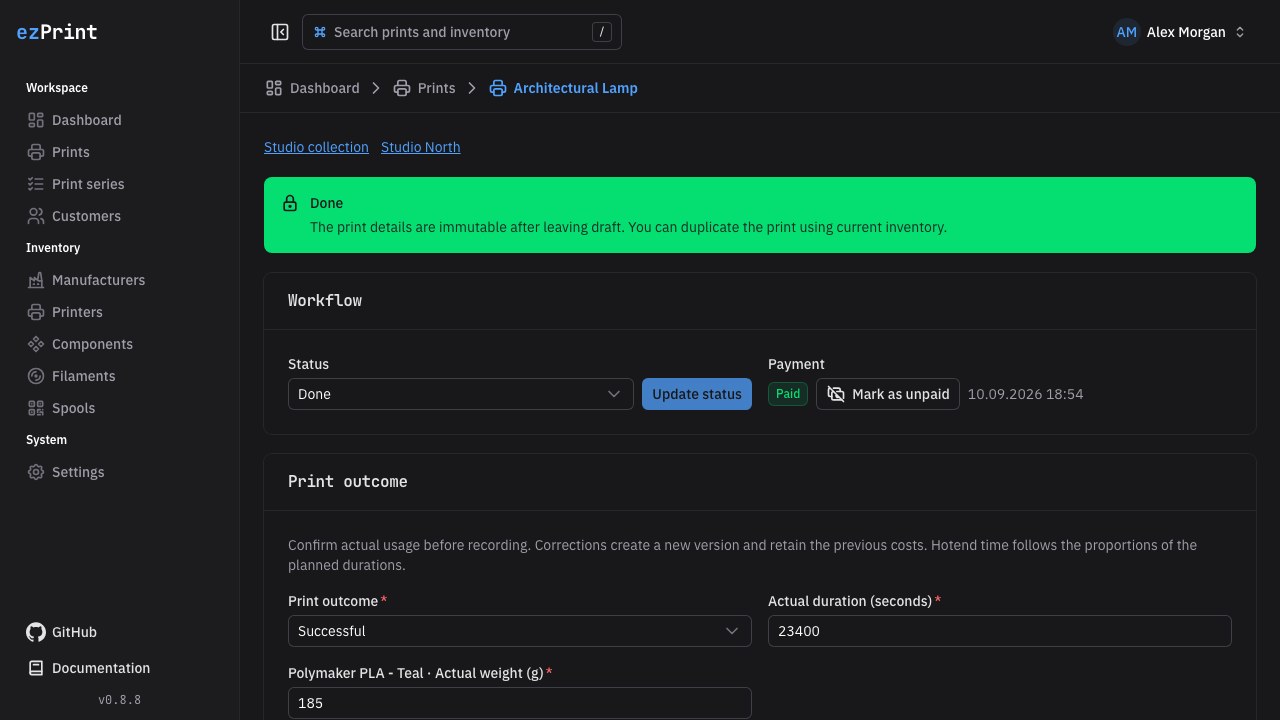
Print fields are disabled after leaving Draft. Later inventory or electricity-price changes do not alter the snapshot. A finalized print cannot return to Draft, but it can move between the other workflow statuses.
Duplicate a print
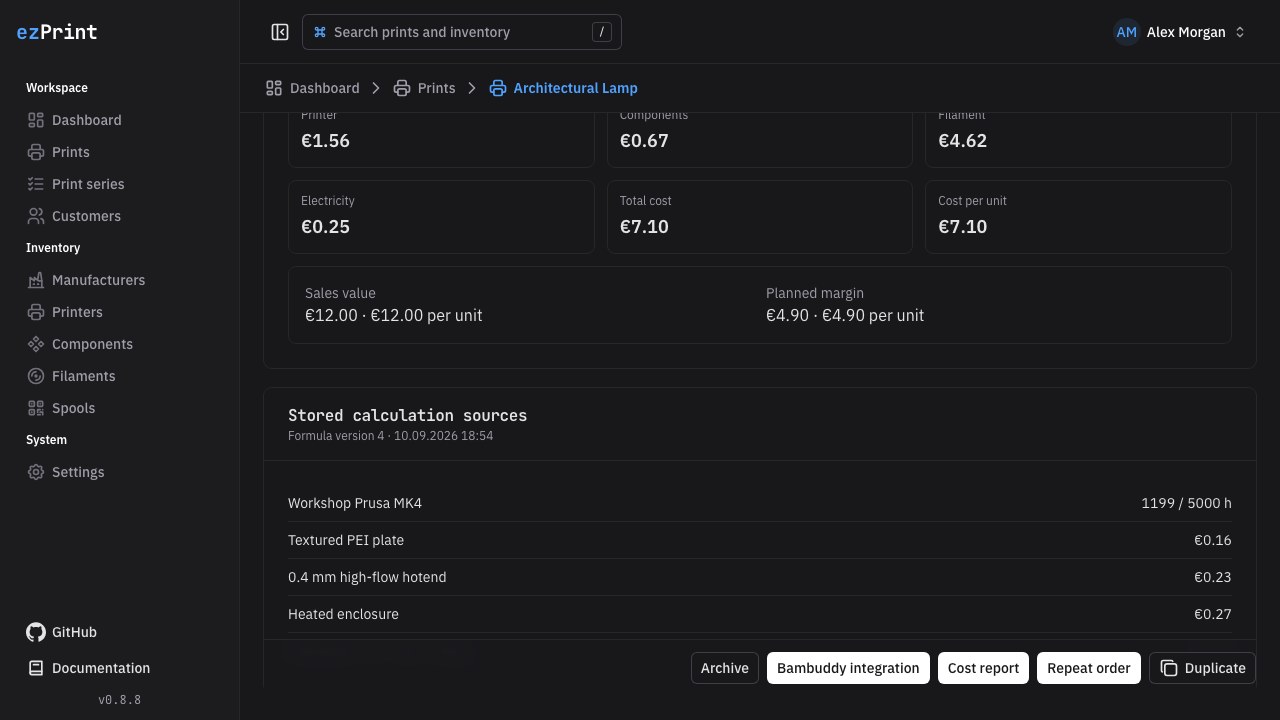
Duplicate is available in every workflow status. It creates a new draft with a (copy) suffix, retains the referenced resources and quantities, and recalculates with the current active inventory, formula, and settings. Review the new total before advancing it; duplication is the supported way to reuse a finalized record.
Enter the number of identical parts in Quantity (1–1,000,000). Enter duration and material for the entire run. The preview and print list distinguish total cost from cost per unit. Duplicates retain the quantity; finalized prints freeze both values.
Record a result and retry a failed print
After marking a print Done, review the Print outcome form. Confirm actual duration in seconds and actual grams for every filament; the initial values are planned usage for you to verify. Select Successful or Failed, supplying a failure reason when needed. Recording freezes the result and displays actual costs beside planned cost and variance. Completed prints without a result remain Pending outcome and do not count toward success rate.
Use Retry print after a failure to create an editable draft at current inventory prices, with the same quantity and customer. Links connect source and retry in both directions. Ordinary Duplicate remains separate. Inactive required inventory must be replaced/reactivated before duplication can succeed. Outcomes and planned calculations are not inherited.
Sales value and margins
Optionally enter the total Sales value for the run in the instance currency. Blank means unknown, and zero is an explicit zero sale. The preview shows planned margin and per-unit values. Leaving Draft freezes the entered value. A successful result shows realized revenue and actual margin; failed runs contribute zero realized revenue and their consumption remains a separate waste cost. Negative margins are supported. Duplication, retry, and repeat orders always clear sales value to prevent double counting.
This is a cost and revenue comparison, not an invoice, tax, receivables, or payment ledger. ezPrint does not split net and gross taxes or infer revenue from its paid flag.
Multiple machine runs in one print
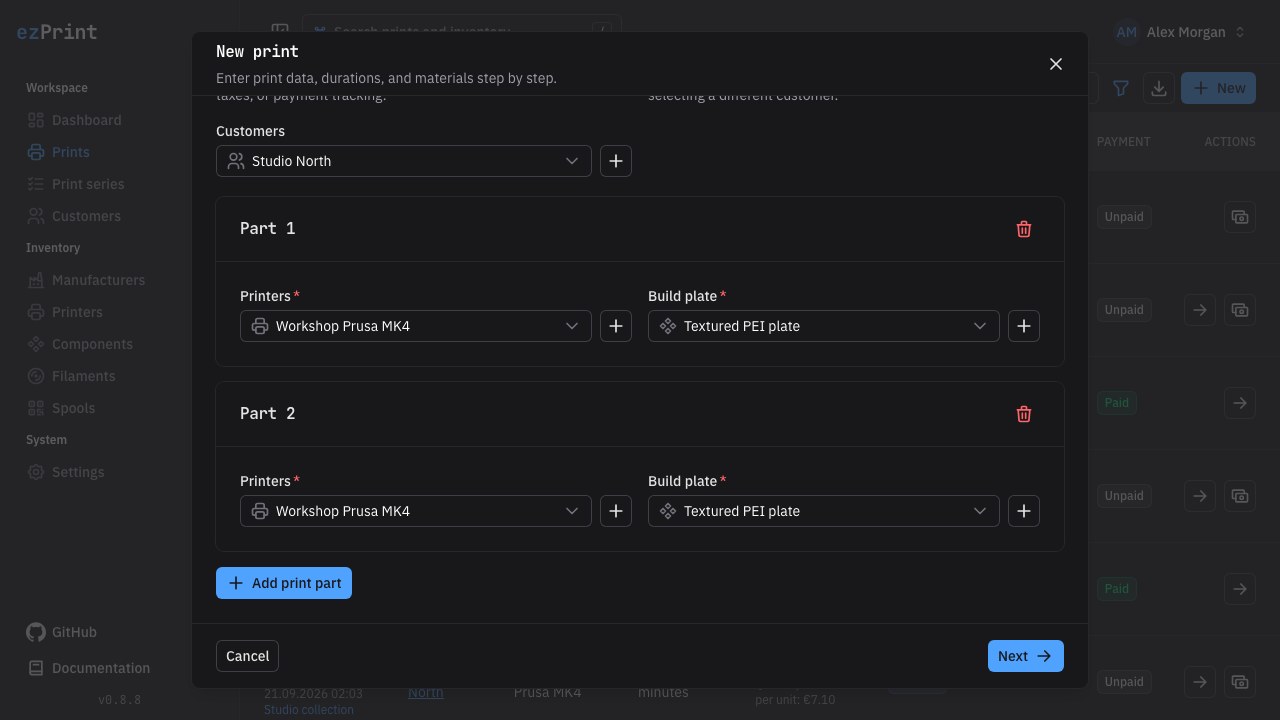
Parts share one customer, quantity, sales value, workflow status, payment, and success/failure outcome. Quantity counts complete products, not parts. Costs and machine time are summed across parts; parallel machine time is still added rather than treated as elapsed wall-clock time. The draft editor can add or remove parts, and each part retains its own printer, plate, hotends, components, and material inputs.
Record actual duration separately for every part and actual grams for every material usage. A correction updates the combined outcome and books only material differences in one transaction. Repeat, duplicate, and retry copy all parts into a new draft. Printer filters match a print when any part uses the selected printer.